# Using SmartView Cloud App
# Devices
Once the SmartView Cloud device is connected to the cloud server and it is claimed to be under your account, it is shown on the Devices page. The page displays list of all of your devices. The pages has two different view modes: Device View and Group View.
- In Device View the devices are shown in a list. with the current current connection status and customisable device name. Selecting the device, it's Dashboard view is displayed.
- In Group lists of the devices are grouped under custom defined groups. E.g. devices located in the Ground Floor can be grouped under its heading, and all devices in the house can be listed under heading Whole House.
| [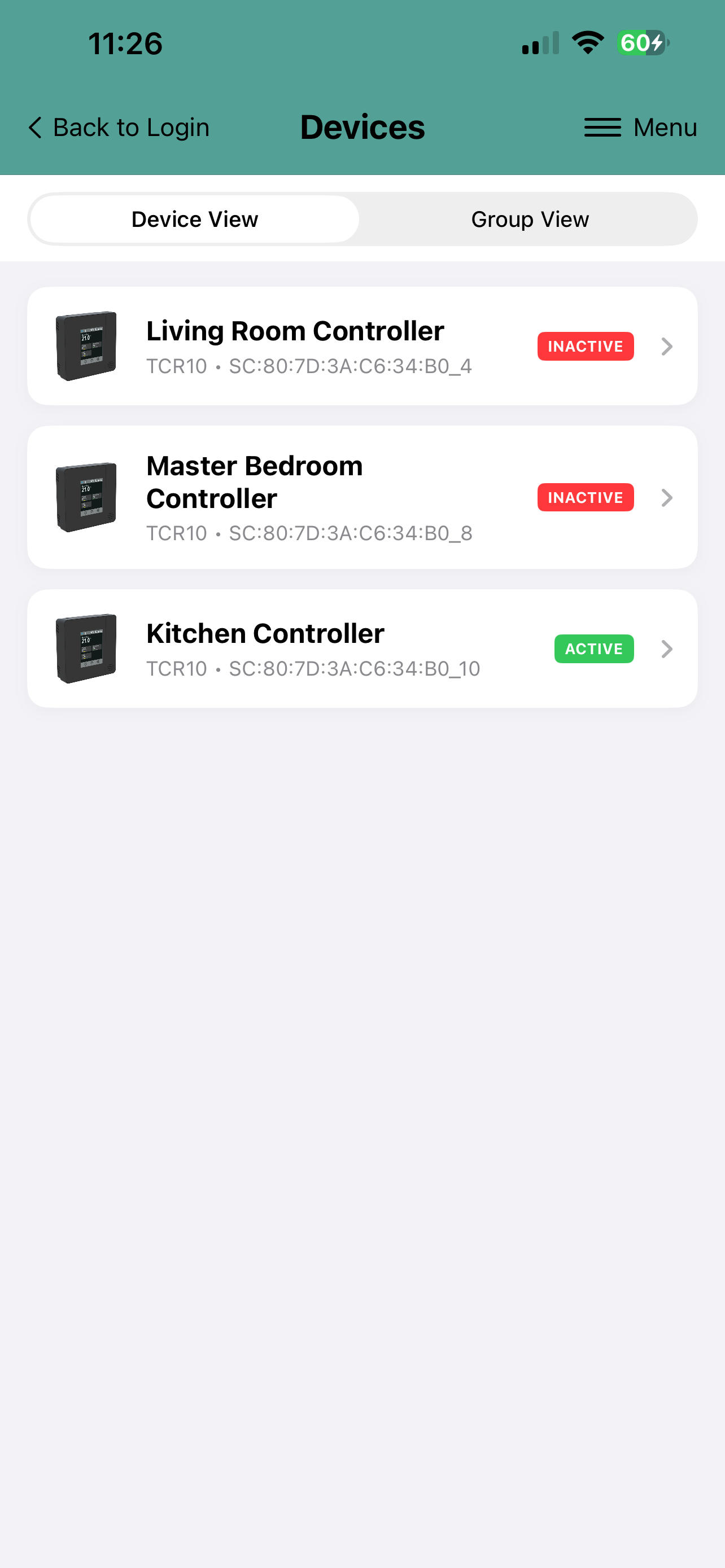 ](https://wiki.senticon.eu/uploads/images/gallery/2026-06/ios-svcloud-devicelist.PNG) | [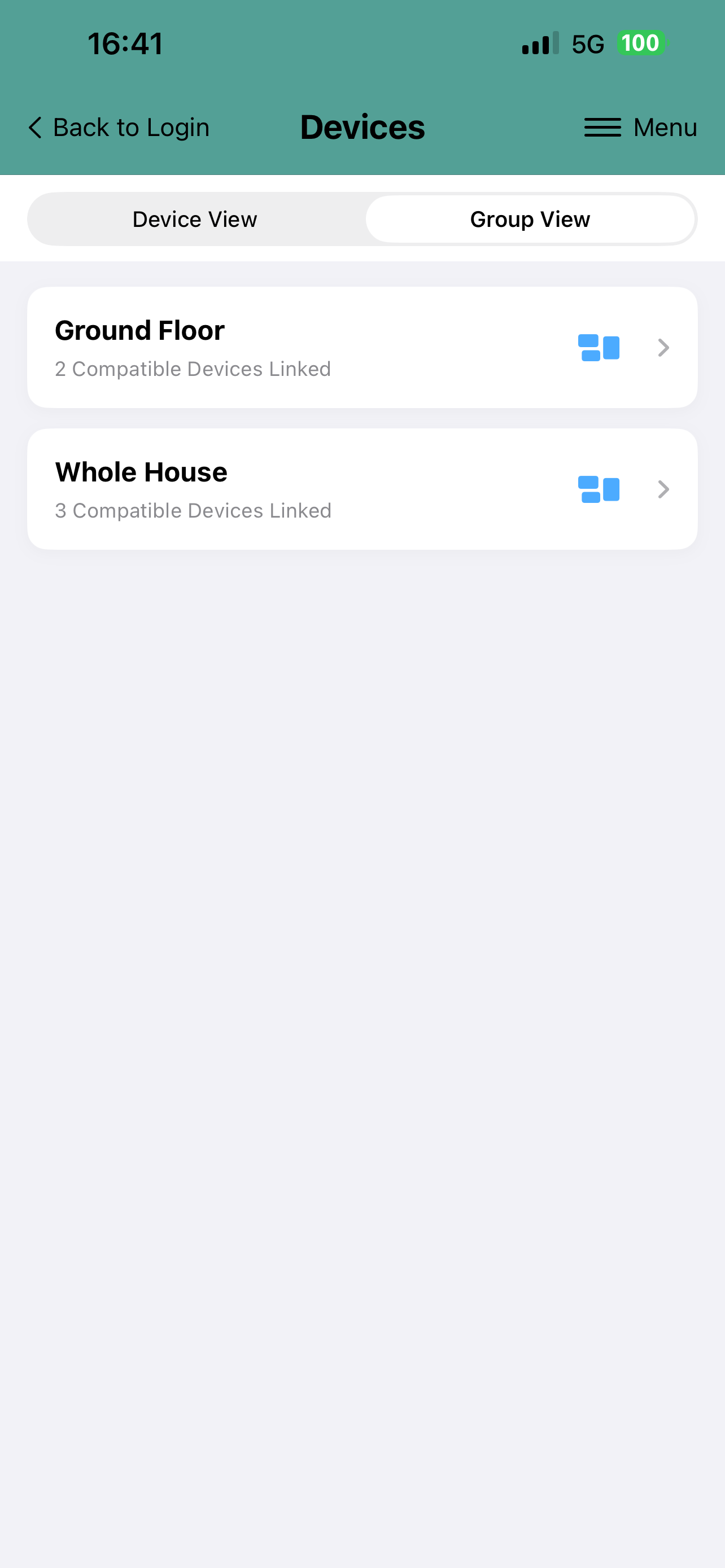](https://wiki.senticon.eu/uploads/images/gallery/2026-06/ios-svcloud-groupview.PNG) |
| Device View | Group View |
##### Configuring Group Views
Selecting from the menu 'Customise Group View' it possible to create new groups and assign devices to belong to that group. Simply just select the devices that you wish to include into the group.
| [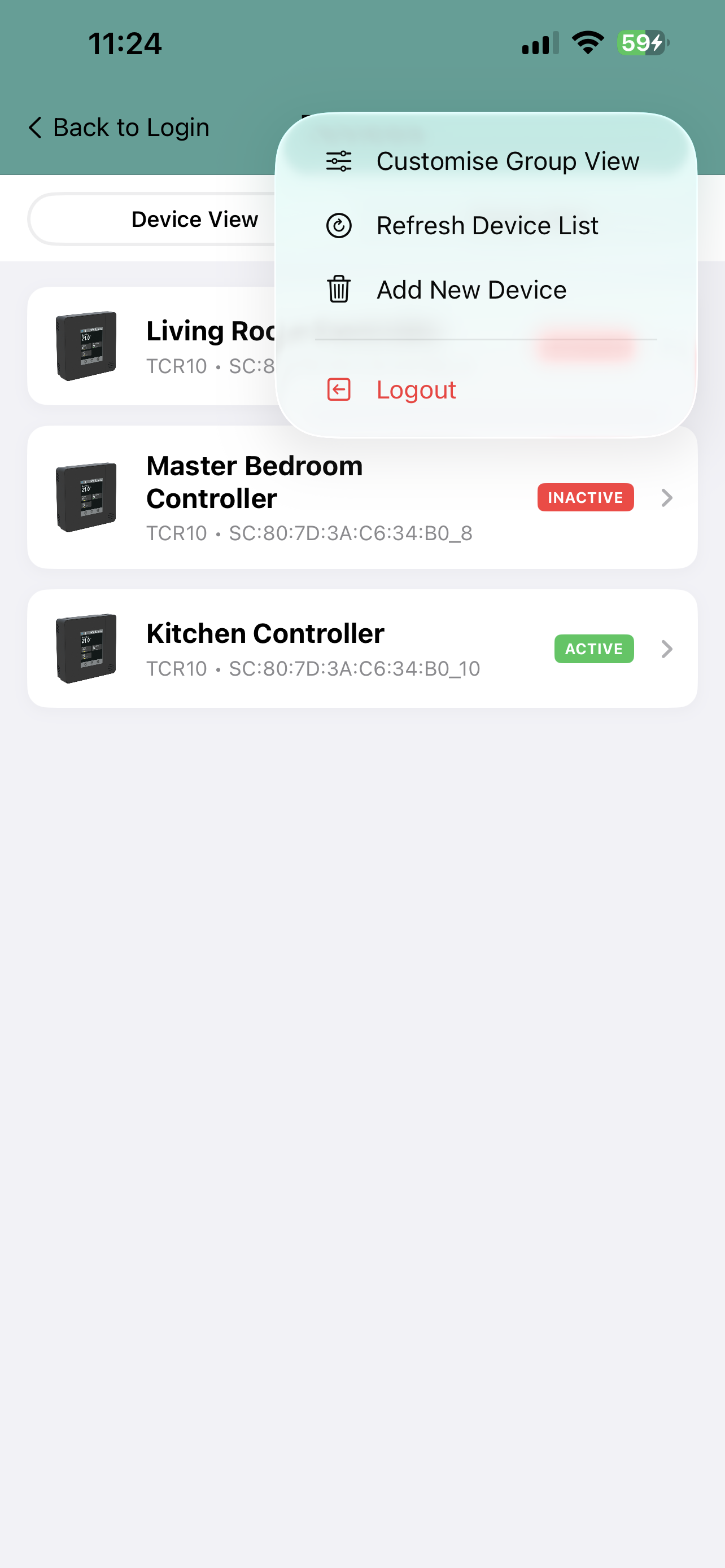](https://wiki.senticon.eu/uploads/images/gallery/2026-06/ios-svcloud-devicelistmenu.PNG)[ ](https://wiki.senticon.eu/uploads/images/gallery/2026-06/ios-svcloud-devicelist.PNG) | [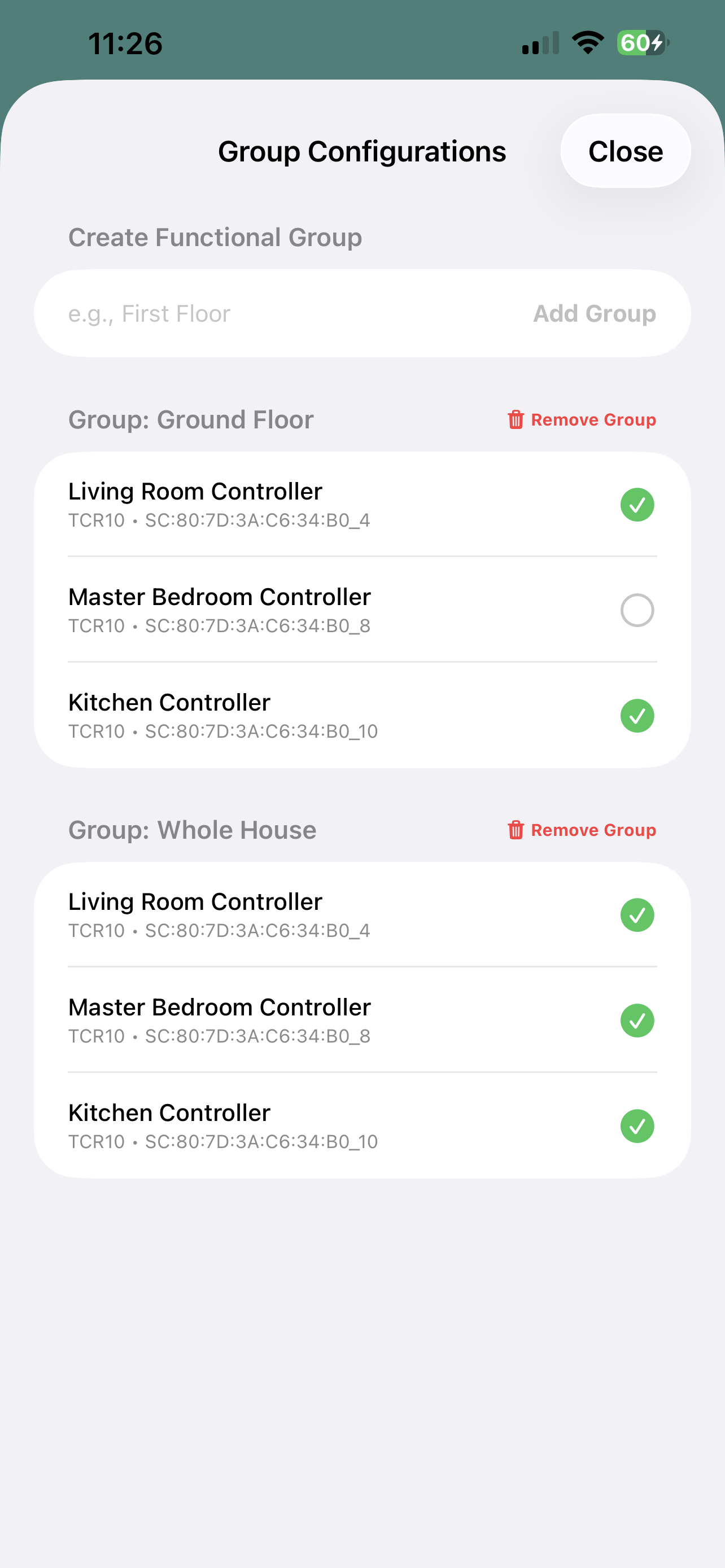](https://wiki.senticon.eu/uploads/images/gallery/2026-06/ios-svcloud-groupsetup.PNG) |
| Customising Groups
| Creating Groups and Assigning Devices to Groups
|
To rename group, delete it and re-select the devices belonging to that group.
# Dashboard
Device dashboard displays the current measurements and settings of the device. From dashboard the setpoints and other settings can be adjusted. Typically these include the temperature setpoint, fan speed and the operating mode (occupied mode or off mode). The exact content of the display depens on the product model and on its configuration.
By pressing - for example - the current temperature setpoint, the temperature setpoint can be adjusted for that controller/thermostat/sensor. To chnage the operating mode just select the required operating mode.
The app sends the new settings to the SmartView Cloud server. When SmartView cloud server detects chnage in the setting it will immediately transmit the new value to the device.
To customise the name of the device, select from the Menu **'Customise View',** and the **'Location Name'** i.e. the device name can be changed.
| [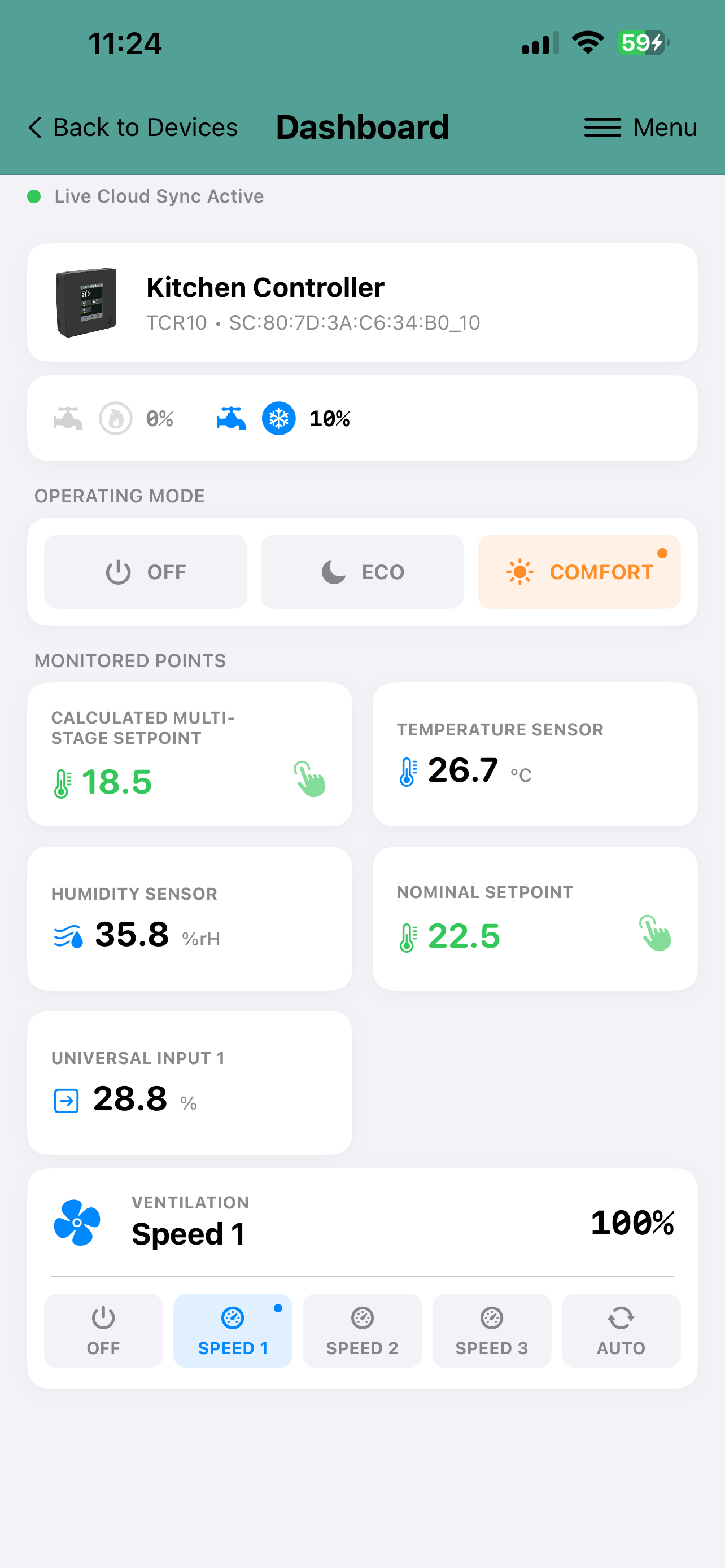 ](https://wiki.senticon.eu/uploads/images/gallery/2026-06/ios-svcloud-dashboard.PNG) | [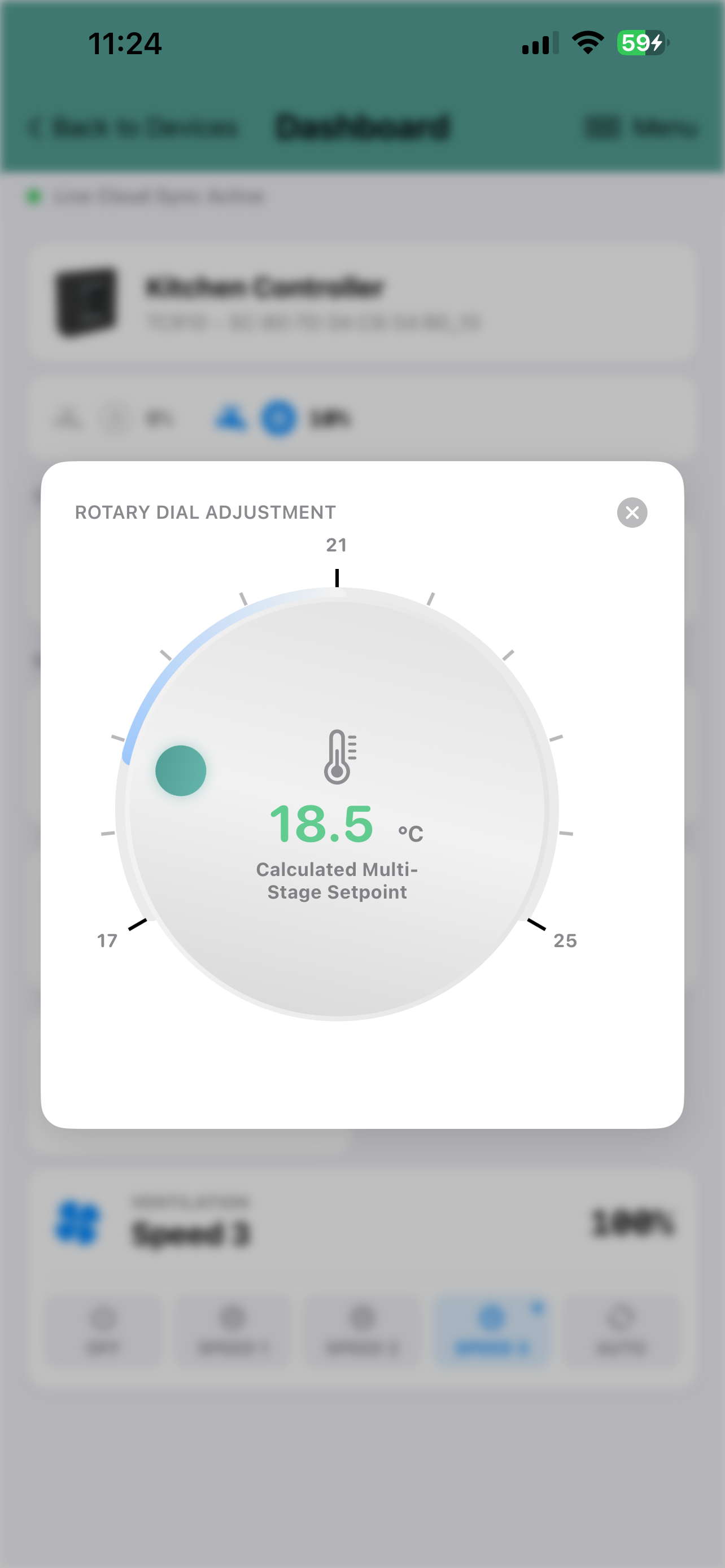](https://wiki.senticon.eu/uploads/images/gallery/2026-06/ios-svcloud-spa.PNG) |
| Dashboard Example
| Adjusting Temperature Setpoint
|
# Group Dashboard
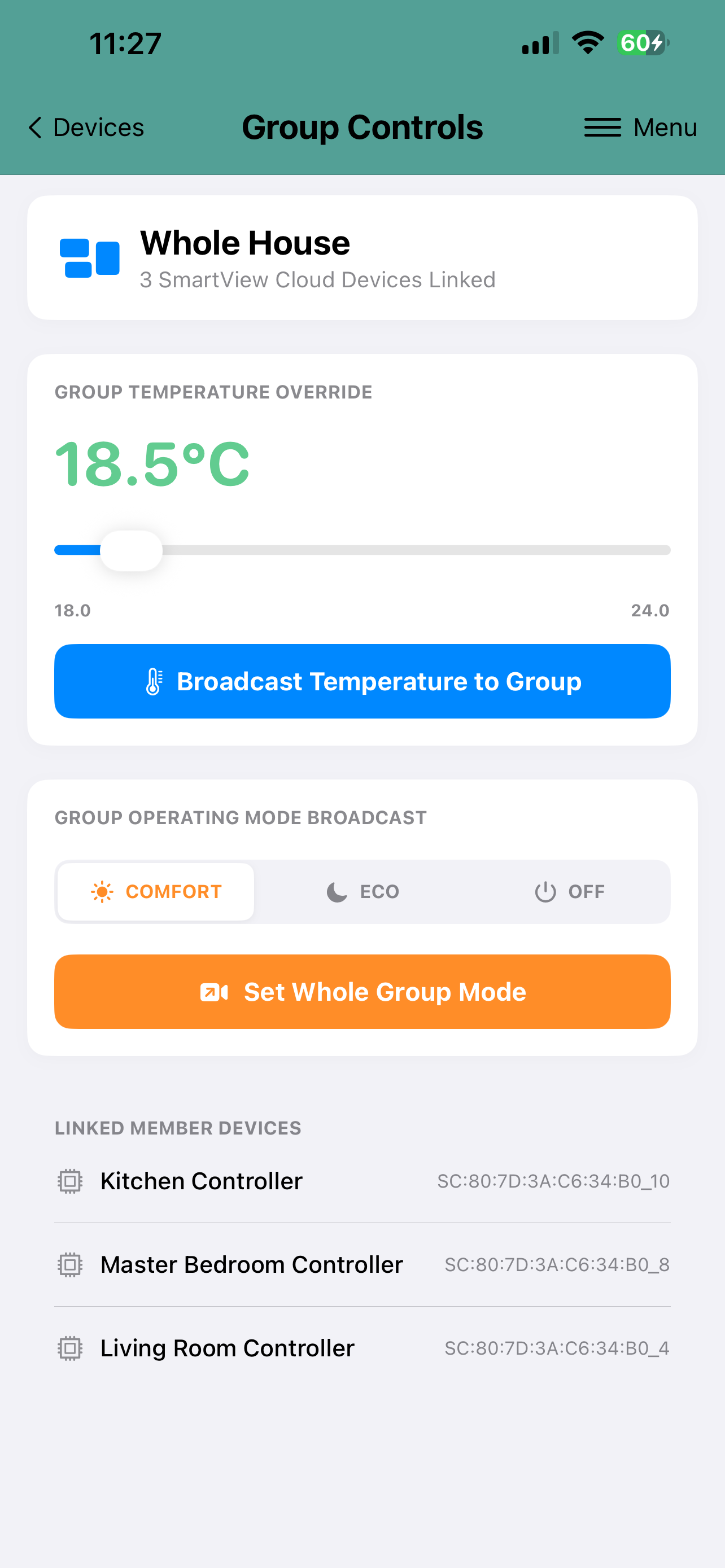
When selecting a Group, Group Dashboard is displayed. From Group Dashboard it is possble to adjust common settings to the devices belonging in one group in one adjustment. Typically the temperature setpoint or the operating mode is adjusted for all of the devices in the group.
[](https://wiki.senticon.eu/uploads/images/gallery/2026-06/ios-svcloud-groupadjust.PNG)