
Device Onboarding
SmartView Cloud Registration
In order to be able to utilise the SmartView Cloud, you need to register on the cloud portal. The registration is done by pressing button labelled as:-
Don't have an Account? Register
The application will ask your details and email address, after which you need return back to log in authenticate connection to SmartView Cloud portal. Once the user profile has been created, it is possible to connect SmartView Cloud Wifi devices to the cloud and to the mobile / tablet app.
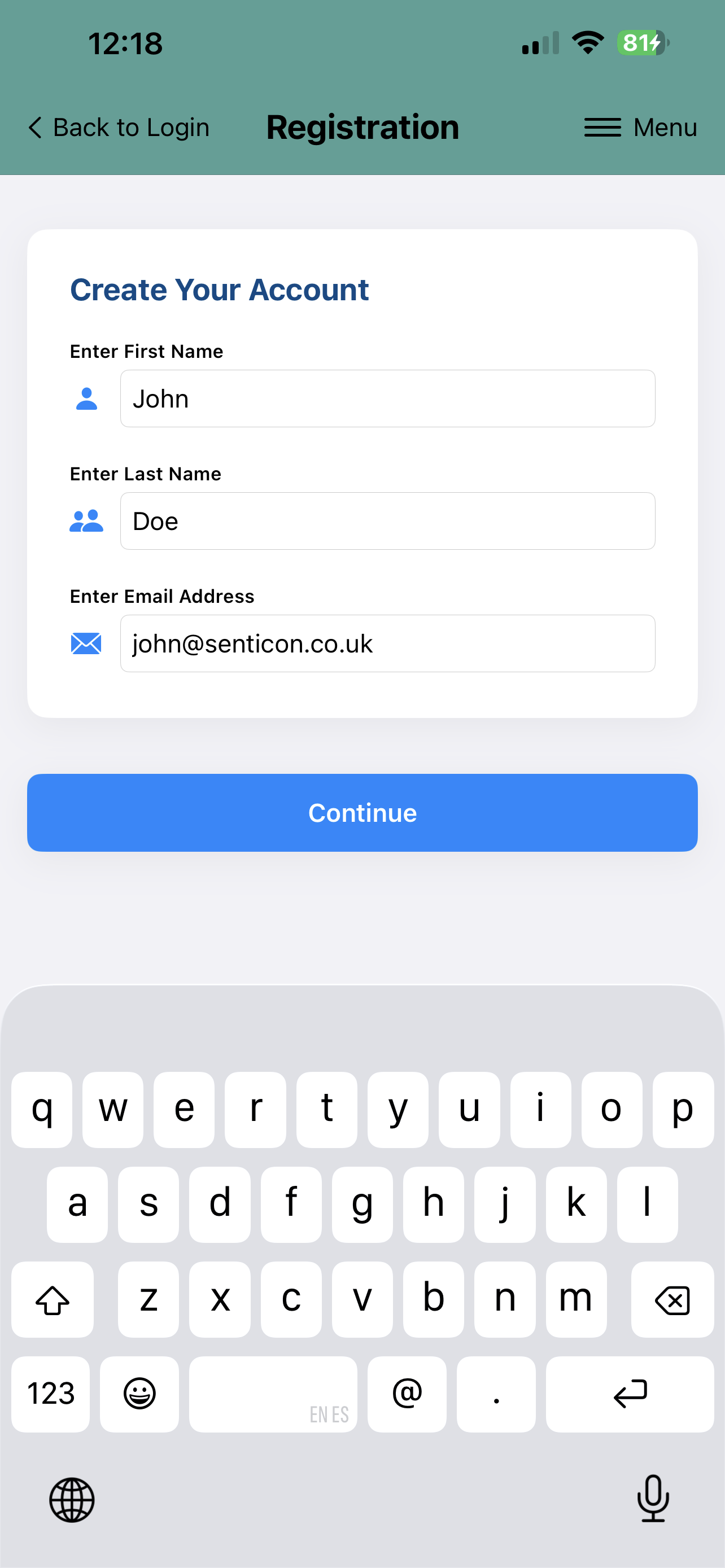 |
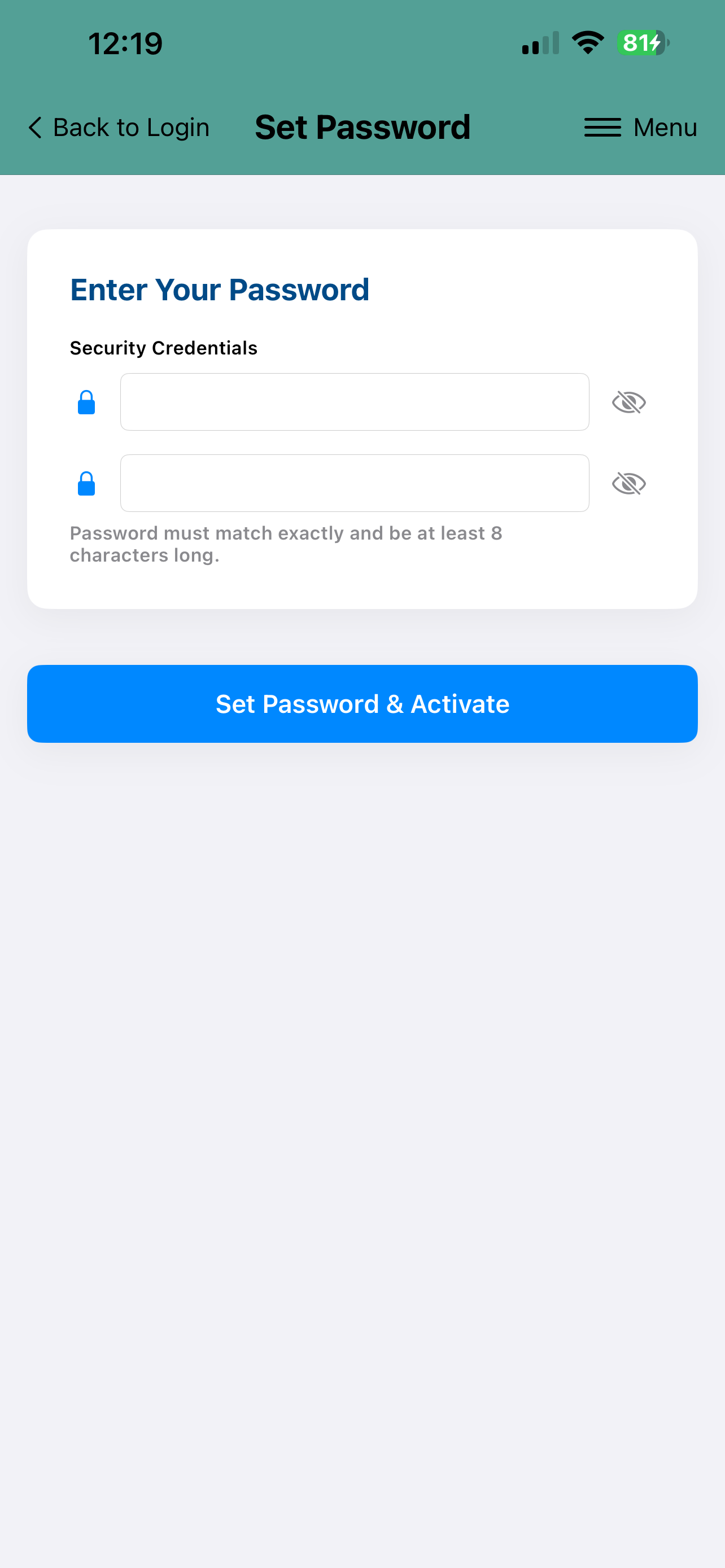 |
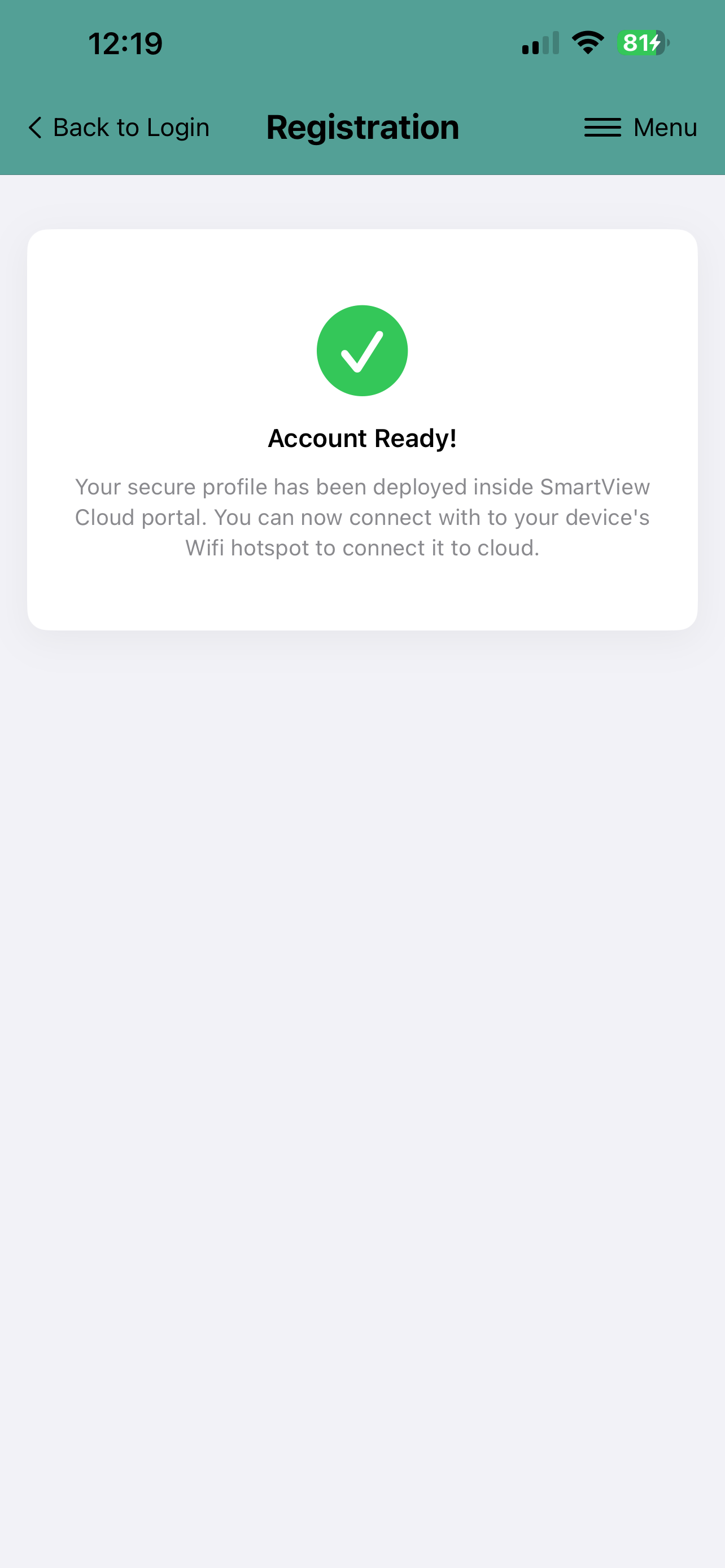 |
GDPR Privacy Notice: Your login details are registered in the SmartView Cloud Portal, which is securely hosted on the cloud.senticon.eu server located in Germany (EU). Data processing complies fully with UK and EU GDPR regulations.
Connecting SmartView Cloud Device
The SmartView Cloud Wifi devices will connect via Wifi to the cloud server. In order for the devices to be able to communicate to cloud, a Wifi connection needs to be established between the device and the cloud server. To do this the SmartView Cloud enabled devices need to configured to be connected to Wifi i.e. typically to the Wifi router.
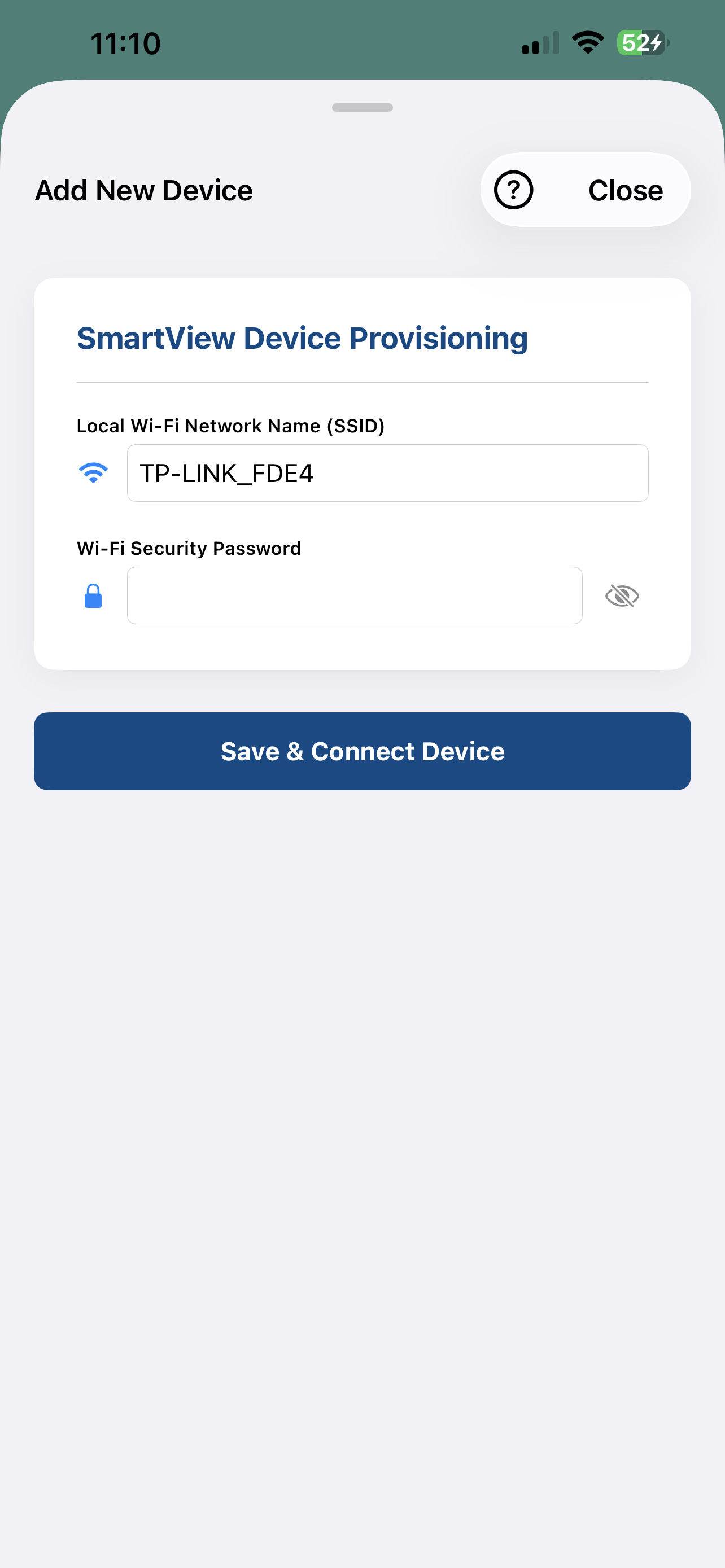
For Wifi configuration you need to know the SSID of the Wifi Router/Access Point and Password.
Follow the following steps to connect the SmartView Cloud Wifi device to the cloud server and to Claim the device to be registered under your user profile on the cloud server.
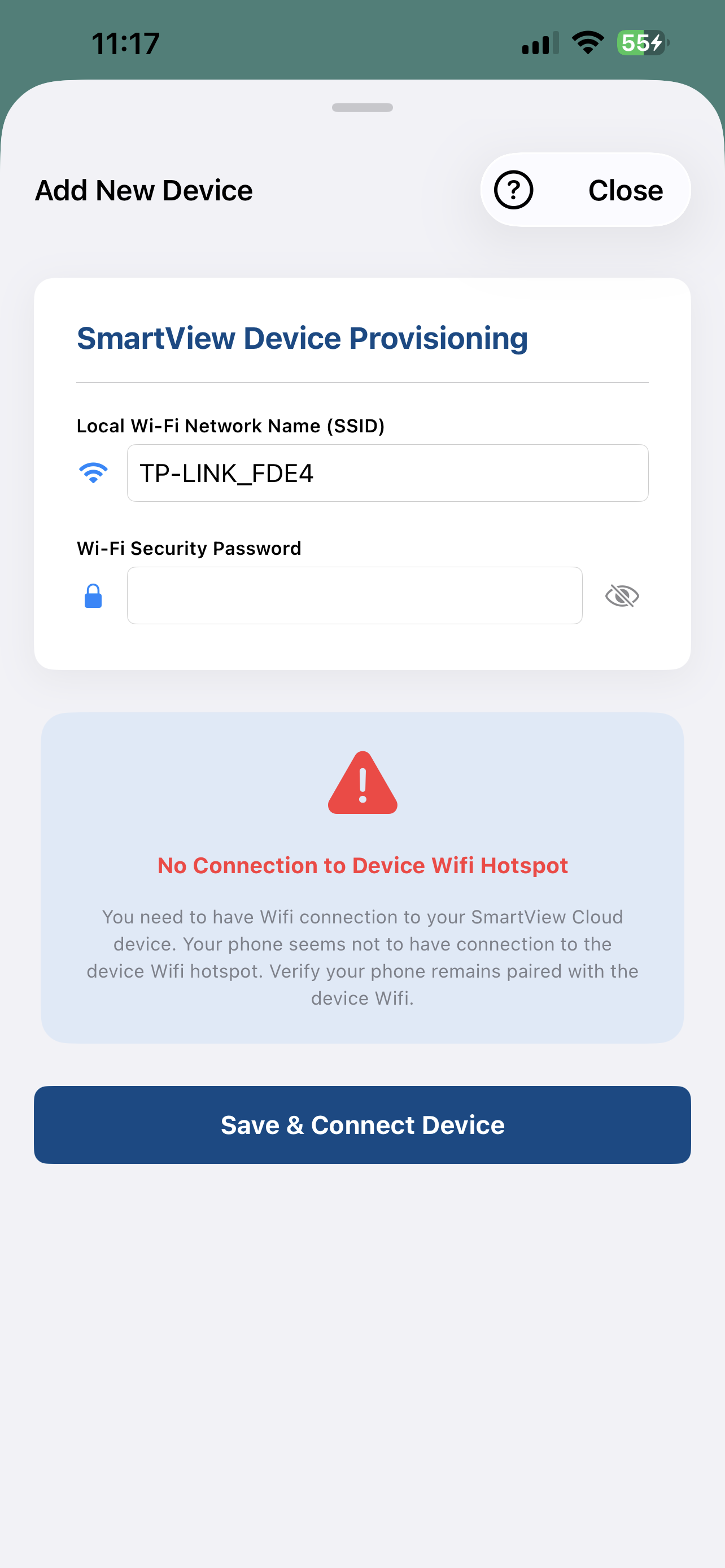
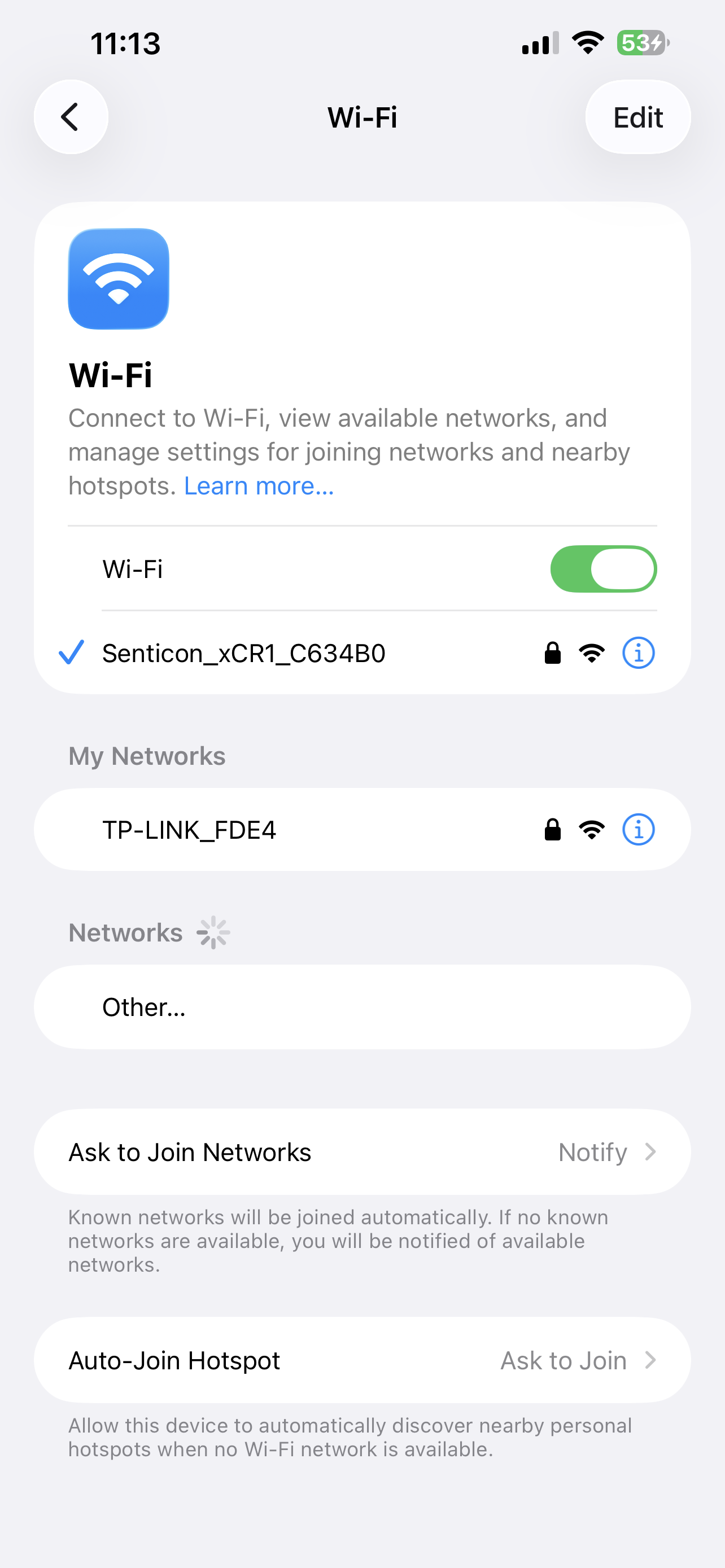
Before trying to configure Wifi credentials to SmartView Cloud device, you need to connect using your phone's Wifi directly to the device Wifi hotspot. The Wifi Hotspot name is similar to 'Senticon_xCR1_abcdef' where abcdef is unique 6-digit identifier of the Wifi hotspot. The Wifi hotspot password is 'iOT_abcdef' when abcdef is the same as the last 6 digits of the Wifi name.
 |
 |
 |
 |
|
Entering Device Provisioning |
Provisioning - No Connection to Wifi Hotspot (Device) |
Using iOS Wi-Fi Settings to Connect Device Wifi Hotspot |
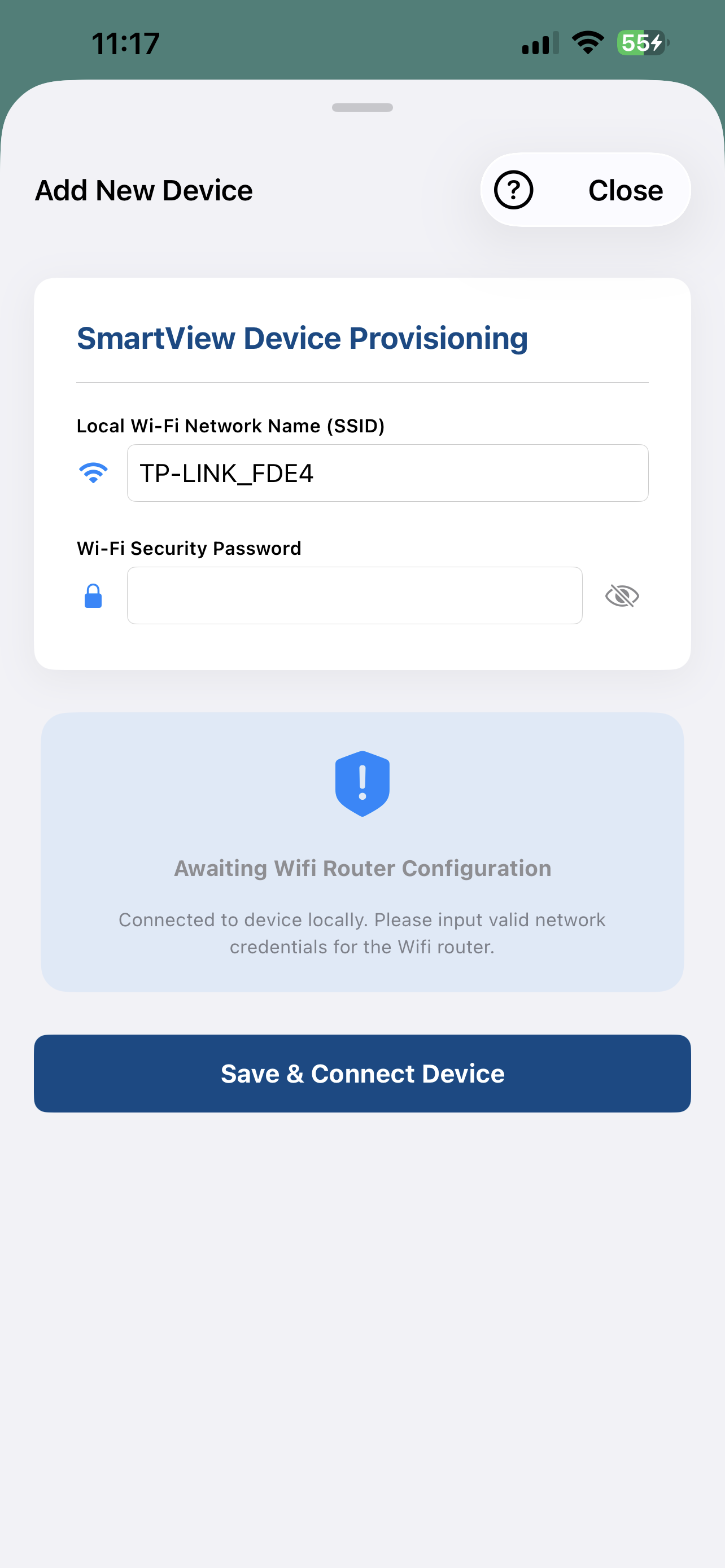
Connected to Wifi Hostpsot - Enter Wifi Credentials |
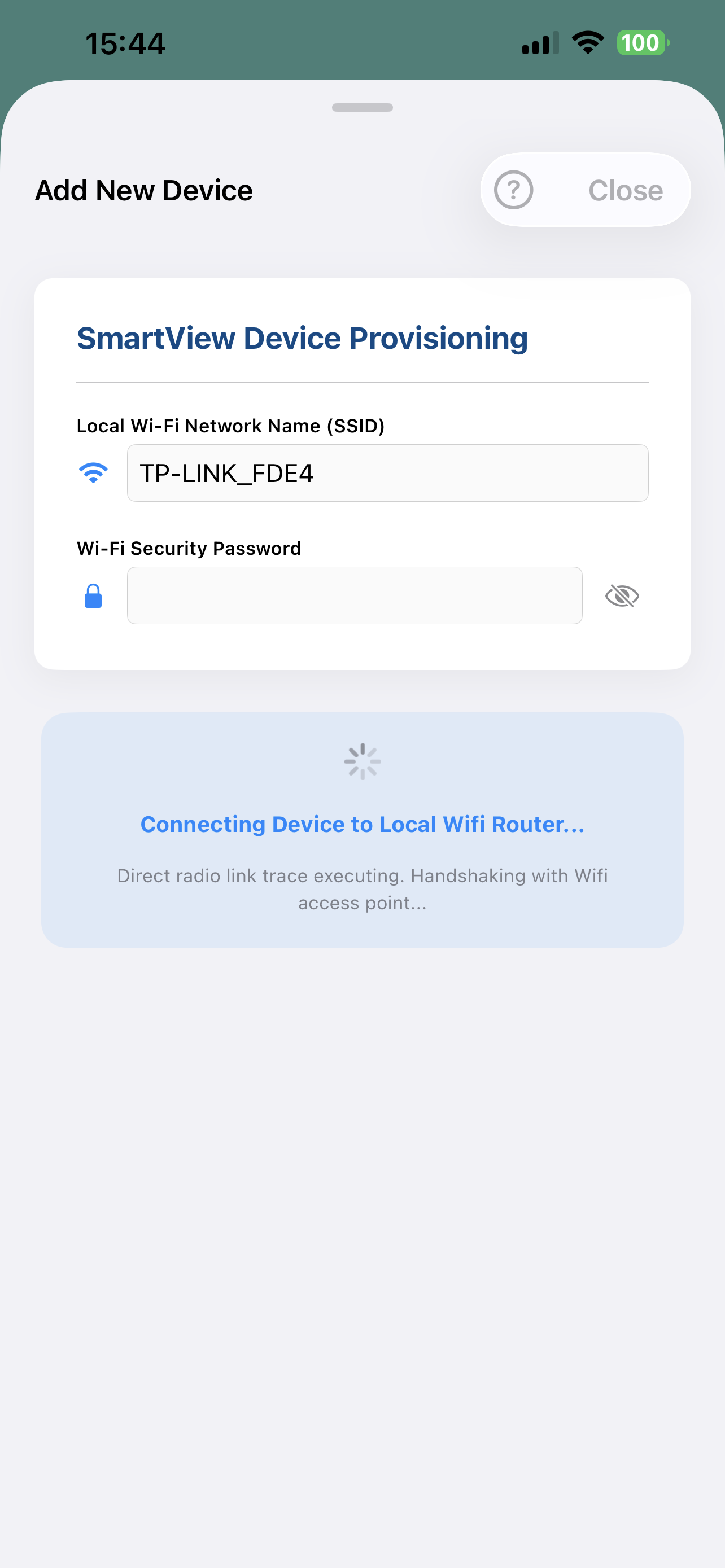
- The App communicates directly to the SmartView Cloud Wifi device using the Wifi hotspot and sends the Wifi credentials to it. The device will connect to Wifi, and authenticate connection to the Senticon Cloud server using secure credentials.
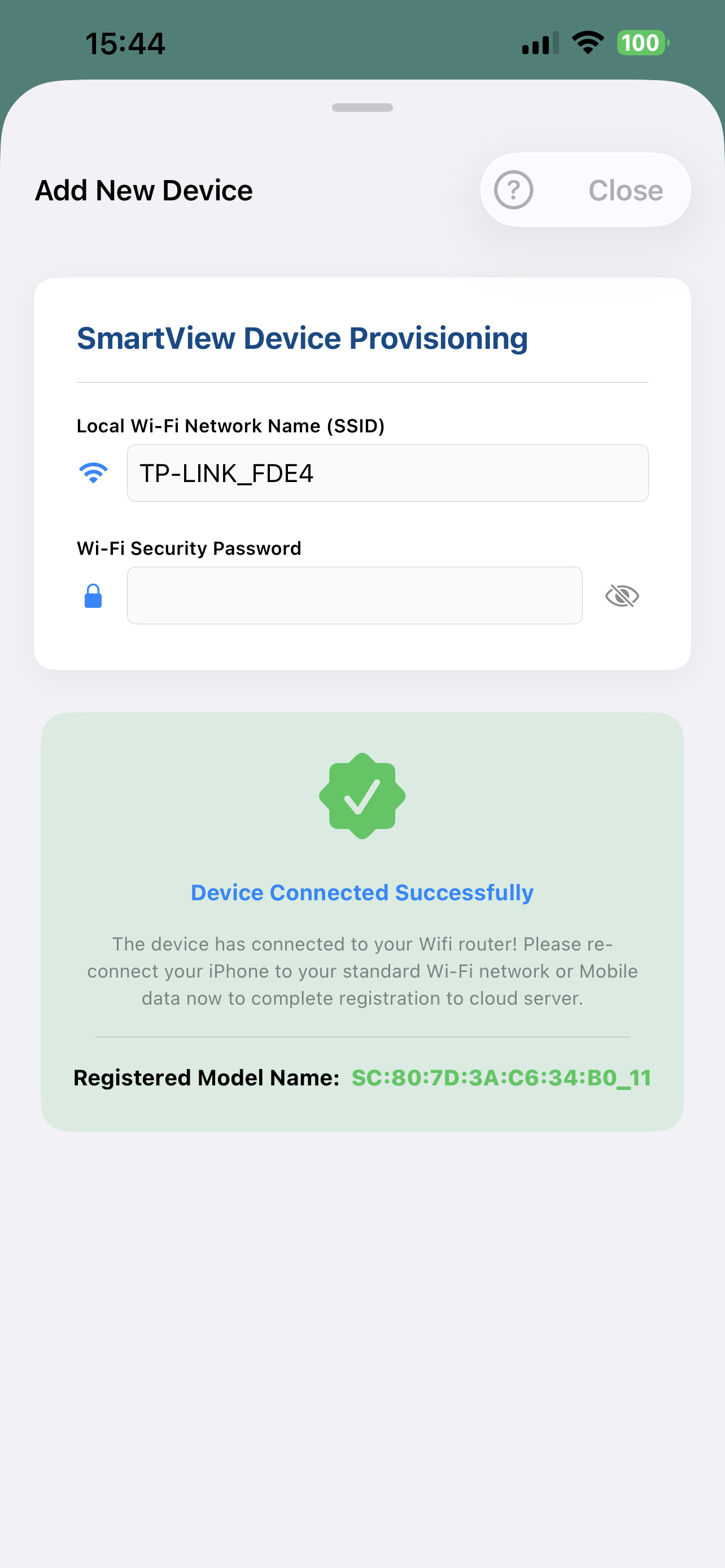
- Once the device has connected to the Cloud Server, the 'SmartView Device Provisioning' screen will show 'Success'.
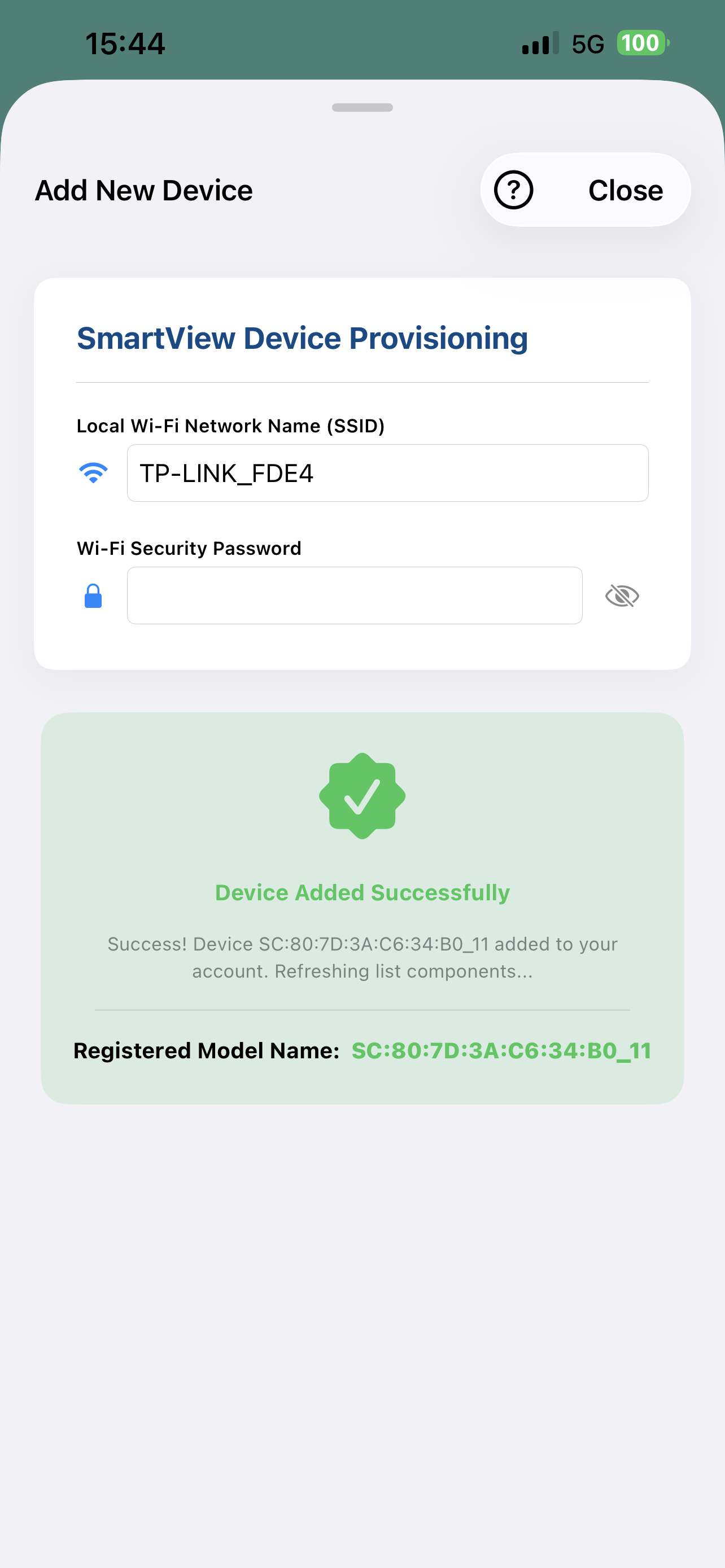
- In order to complete the connection, it is required to transfer the 'ownership' of the new Wifi devices under your registered cloud profile. To do this you will need to have internet access on your app. So disconnect from SmartView Cloud Device Hotspot and connect your phone/tablet to Wifi. Return to app 'SmartView Provisioning Page' and the app will automatically transfer the device under your profile.
If you have Mobile Internet active you can also just disable the Wifi and the phone (App) will then automatically route the ownership claim under your account.
 |
 |
 |
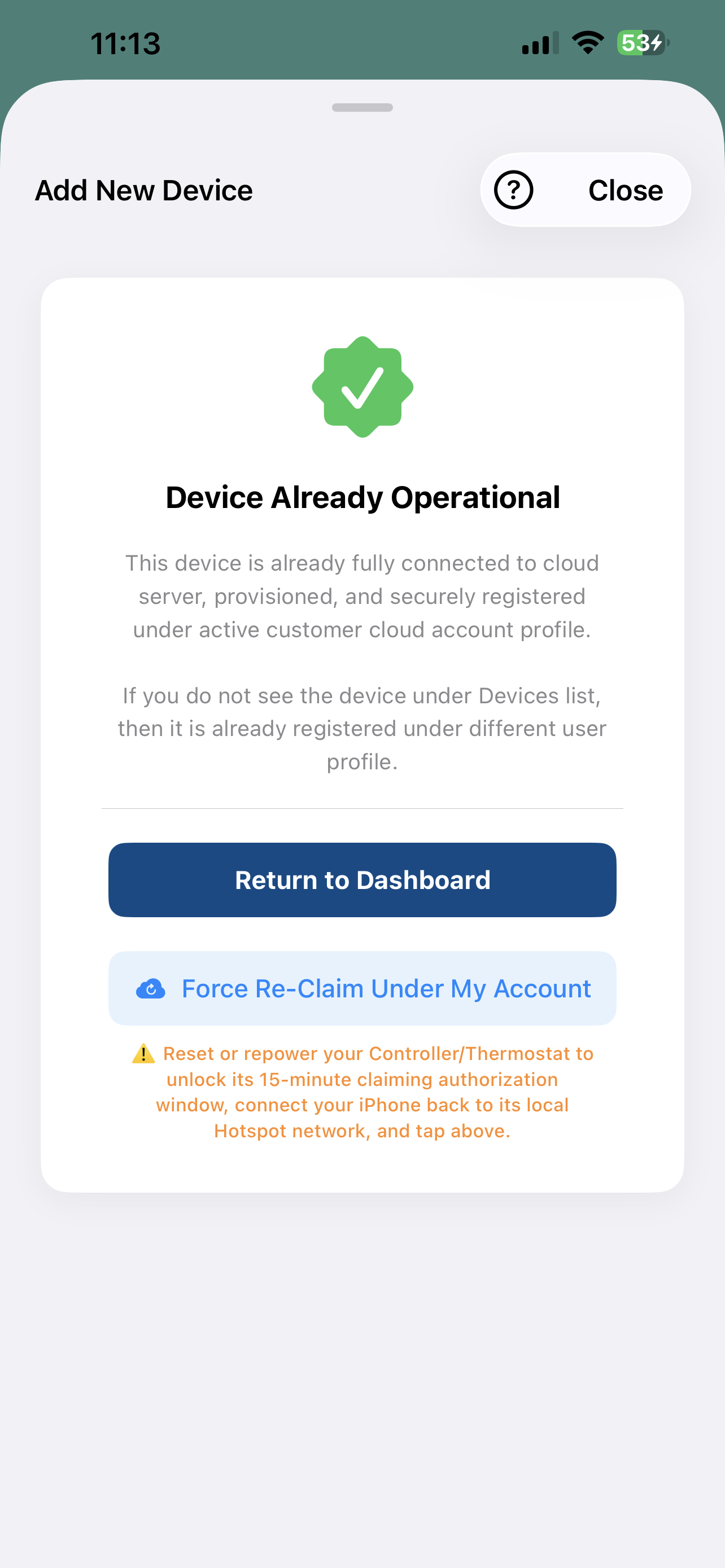 |
| Device Connecting to Wifi Router and Cloud | Device Connected to Wifi and SmartView Cloud | Device Added under Users Cloud Account (NOTE: Remember to disconnect from Wifi Hotspot before this step) | Message if the Device is already Connected to SmartView Cloud |
Please note that the ownership claim must be done within 15 minutes window of entering the Wifi credentials to the SmartView Cloud Wifi devices. To activate the claim window again you can either reset (from reset button) the SmartView Cloud Wifi device, or switch power off and on. On restart the 15-minute claim window is activated.